Explore A555 game categories, bonuses, app download, login, registration, profile, and invite features in this simple guide for users aged 18+.

I recently visited the A555 Game mobile homepage and found it a bit overwhelming at first. There were so many colorful tiles and buttons, making it hard to know where to start. However, after scrolling through for about five minutes, I figured out how the app works.
If you’re new to A555, this guide will help you save time. I’ll show you where to find games, which download button to use, and how to navigate the login and promotion pages without getting lost.

What is A555 Game? A Quick Overview
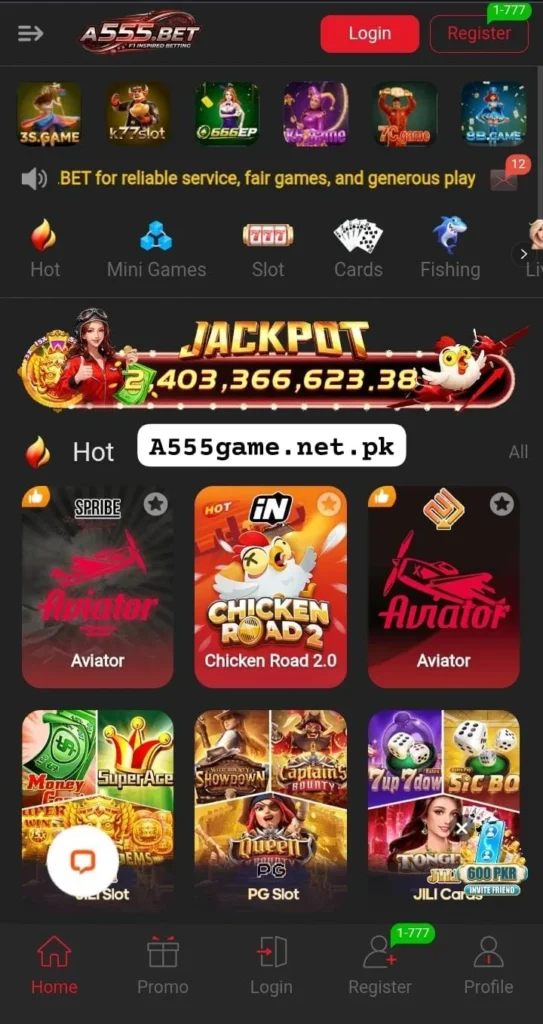
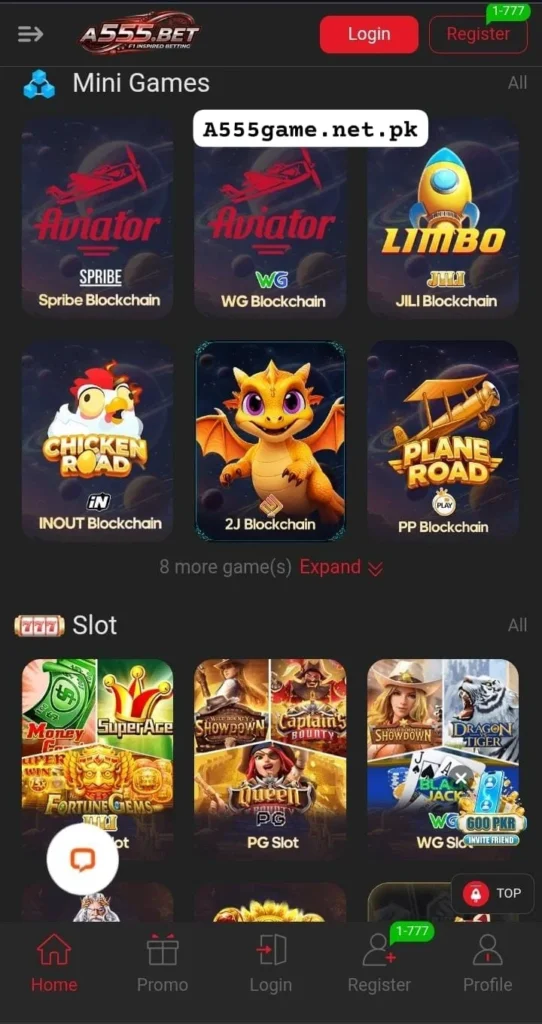
A555 is a mobile gaming platform where games are organized in rows by category. At the top of the screen, you’ll see the logo, Login, Register, and a menu button. At the bottom, there are five main buttons you’ll use most often: Home, Promo, Login, Register, and Profile.
Honestly, the bottom menu is very helpful. Even if you scroll all the way down, you can quickly return to Home or Promo. If you ever get lost, just tap the top button—it brings you back to the start.
The Promo Page and Its Tabs
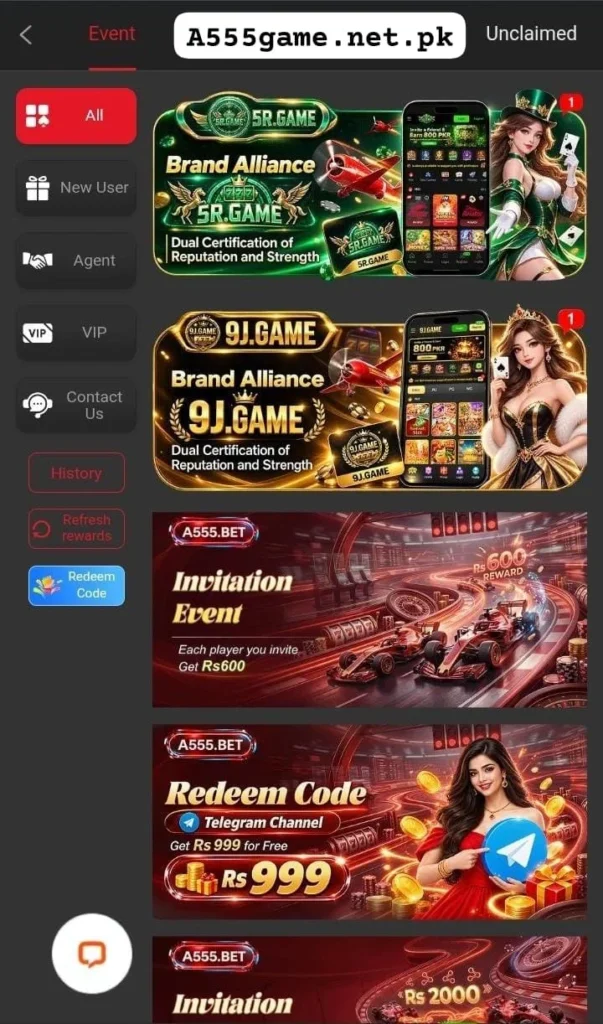
The Promo page has five tabs across the top: Event, Mission, VIP, Rebate, and Unclaimed. When you choose a tab, you see the cards listed under it. This lets you look through one group at a time instead of reading every notice in a single list.
Keep an eye on which tab you are viewing. A card under Mission belongs to that section, even if it looks similar to a card elsewhere on the page. You can move between tabs to see what each one contains without guessing from the images.
The tab names tell you how the page is organised. They do not tell you what is available to your account. For example, the Unclaimed tab may be visible even when there is nothing for you to claim. Check what the page actually shows.
Explore the Games Available on A555
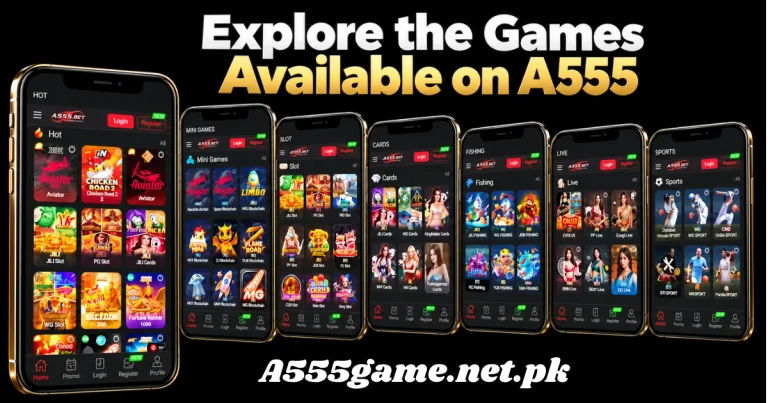
All A555 Game Categories Explained – Where to Find What You Want. I noticed that A555 has seven main categories on its home screen. Instead of just looking at the picture, always read the name below each tile.
Hot Games
This is the first row on the Home page. It shows the titles currently listed under Hot, so you can find them without searching other categories. Check the names before opening one, since the selection may change.
Mini Games
Mini Games has its own row. The small tiles are easy to scan on a phone, but each game can work differently. Open a title and look at its controls before you start playing it.
Slot Games
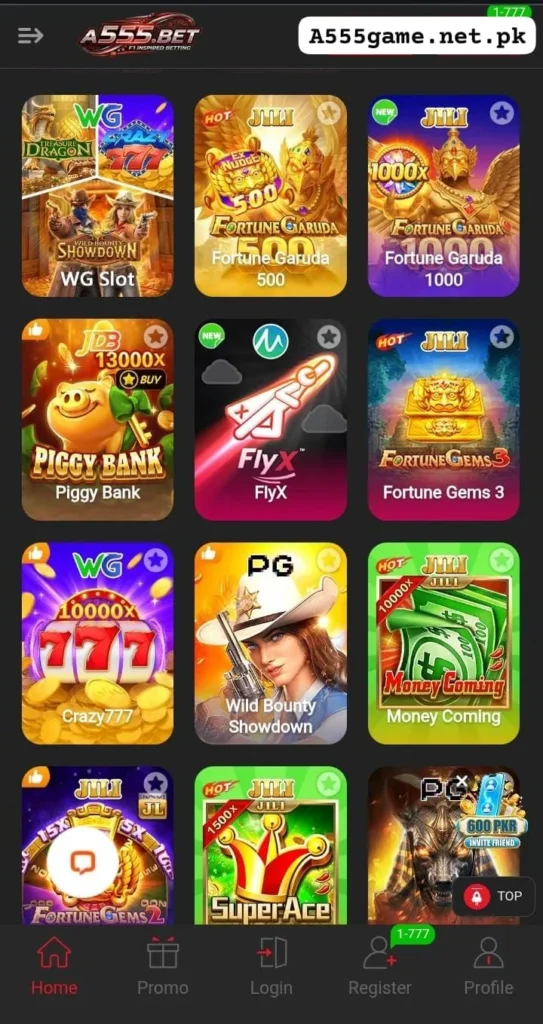
Slot Games stands out because its tiles use bright artwork. Some pictures can look alike, so read the names below them before choosing. Swipe across the row to see more titles if they are available.
Cards
The Cards row keeps card titles in one place. If only a few appear on your screen, use Expand below the row or All near the heading to check the rest of the same category.
Fishing Games
The fish icon and underwater artwork make this row easy to find. It is my favourite section to browse because the pictures look different from the others. Open a tile to see its game details.
Live Games
Live Games appears after Fishing on the Home page. Its thumbnails have a different look from the rows above, which can help you spot it. Check each title before opening a game from this section.
Sports
Sports sits near the end of the Home page. If this is the category you want, scroll down to its row. Tap Expand to see more titles, then choose the one you meant to open.
Quick Tip
If two tiles look alike, compare their names first. If a provider logo appears below them, use that label as a clue. This can help you find the title without relying on the artwork alone.
How to Find a Game When Titles Look Similar
Two game tiles can look almost the same, especially on a small phone screen. If you have a particular game in mind, read the name below each picture before opening one. Once the game page opens, check its full title to make sure you found the right one.
If the title is different, go back to the same category and look at the nearby tiles. A provider label may give you another clue when one is shown, but the game’s name is the clearest thing to compare.
What the Provider Logos Tell You
When users open the A555 menu, they can find options for app download, account, rewards, records, support, and settings. The Recent option can help them return to games they opened before.
While browsing games, users may also notice provider logos. These logos help identify the provider, but they do not explain the game’s rules or tell you whether you will like it. Open the game’s page for those details.
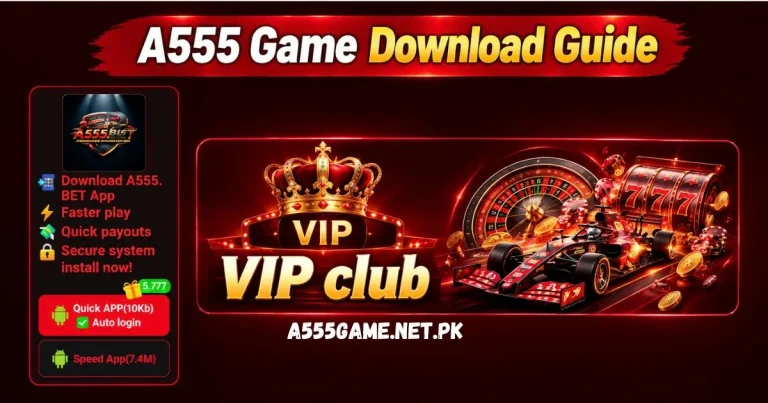
A555 Game Download APK – How to Download on Android Safely:
Before installing an A555 APK, confirm the publisher and check the file details for your device. Read our External Links and Download Policy for source checks.
Here’s how I do it safely:
Android may warn about files from unfamiliar sources. If you cannot verify the publisher or file, skip the installation.
A555 Login and Register – Step-by-Step Guide:
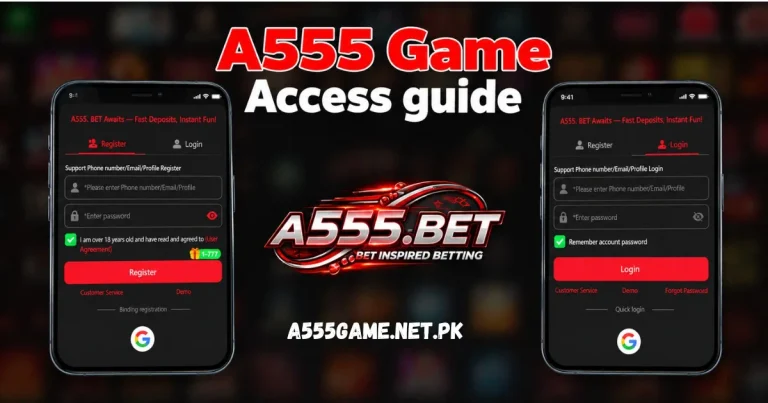
Register a New Account
Log In to Your Account
A555 Bonuses and Promotional Events
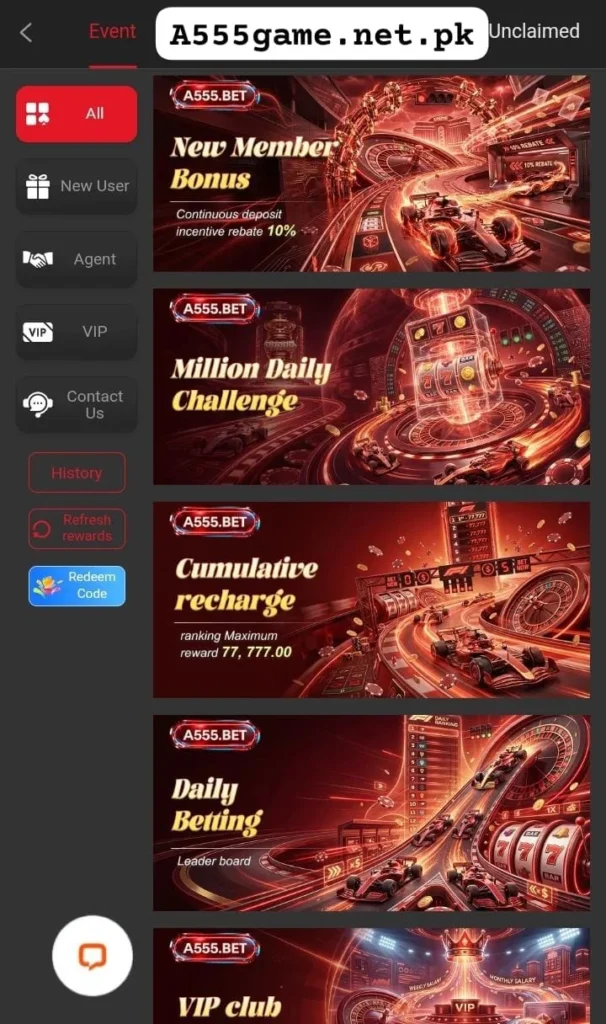
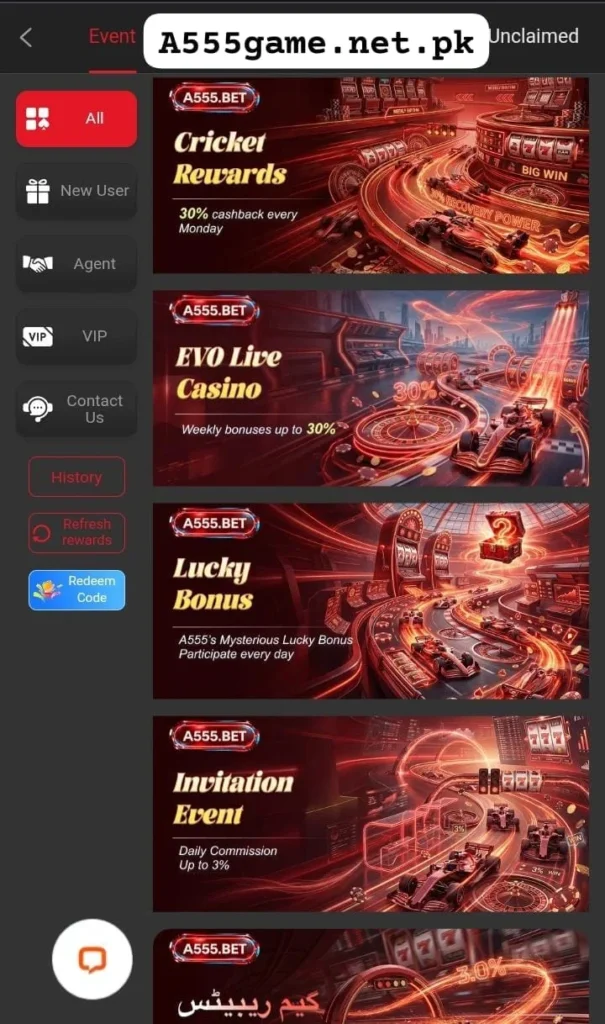
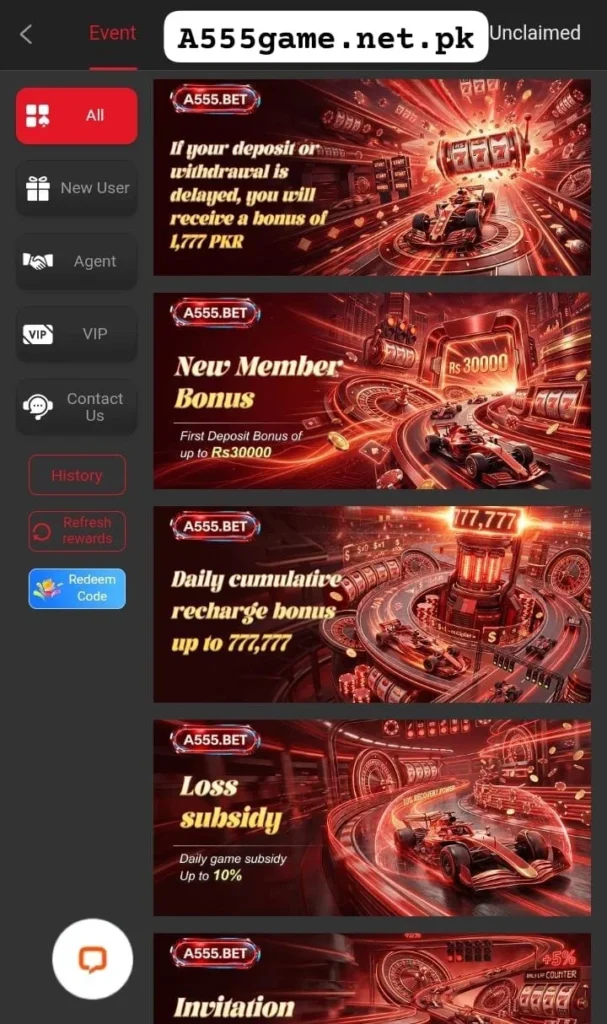
The A555 Promo page shows these notices under tabs such as Event, Mission, VIP, Rebate, and Unclaimed. The figures below come from the cards. A card’s headline may leave out details about who qualifies and how an amount is worked out.
New Member First Activity Bonus
This card is for new members completing a first qualifying activity. It shows a maximum amount, which may be different from the amount available to an individual account.
New Member Continuous Bonus
The card mentions 10% for continued account activity. The percentage alone does not explain how an amount is calculated, so read the full notice for that detail.
First Activity Extra Reward
Several reward levels are shown for a first qualifying activity. The level may depend on the amount selected. Compare the levels on the card before assuming which one applies.
Daily Cumulative Reward
This card shows a daily cumulative reward of up to 777,777. That is the highest figure displayed, not an amount promised to every user. The full notice should explain what counts toward the daily total.
Cumulative Ranking Reward
The event shows a ranking reward with a maximum figure of 777,000. The image does not explain how final positions are decided. Read the scoring details before relying on a place shown during the event.
Weekly EVO Live Bonus
The EVO Live card mentions a weekly bonus of up to 30%. Check the full notice to see which titles it covers and what an account must do to qualify.
Lucky Bonus
Lucky Bonus appears as its own event. Its short title does not explain what a user may receive or how it is decided. Open the notice for those details.
Lucky Bet Prize Event
This card shows a prize multiplier of up to 1000x. The word “up to” matters: it is the highest figure shown, not the result for every participant. Read when the multiplier applies.
Daily Leaderboard Event
The Daily Leaderboard lists a daily ranking event. The card alone does not tell you how scores are counted or when the ranking closes. Those details matter more than a position shown partway through.
Million Daily Challenge
Million Daily Challenge is listed as a separate daily event. Its name does not explain the task. Read the event page to see the steps, time period, and account requirements.
Daily Sign-In Reward
The card shows a daily sign-in reward of up to 18,888. Check whether it requires a sign-in, a separate collection step, or both on the days you visit.
Invitation Daily Commission
This invitation card shows a daily commission of up to 3%. The headline does not explain which invitations count or how that percentage is calculated.
Invitation Reward per Player
The card mentions Rs 2,000 for each qualifying invited player. Sending someone a link is only one part of an invitation; the notice explains what makes a player qualify.
Daily Invitation Reward
This offer shows Rs 300 for daily invitations. Read the full entry to see how many invitations are needed and which day they are counted toward.
Invitation Mission Reward
The Invitation Mission card shows Rs 5,000 for completing its steps. Look at the full checklist and any deadline, as the heading does not say when the mission is complete.
Weekly Invitation Event
This card mentions Rs 1,000 for a weekly sharing event. Check how a share is counted and when the weekly period starts and ends.
What You’ll Find on the Invite Page
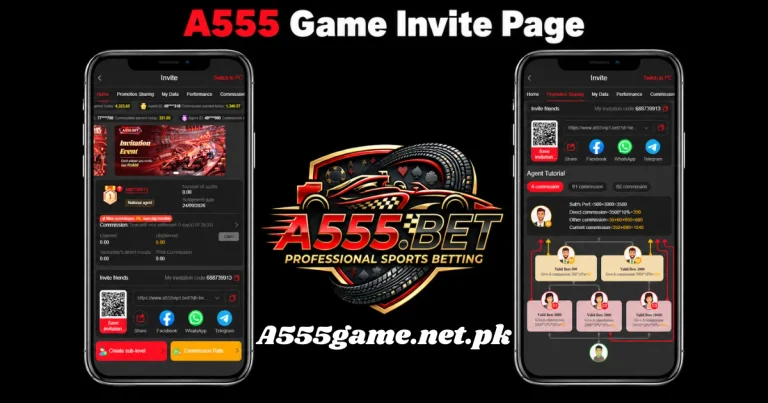
The Invite page shows a QR code and sharing buttons. There is more information farther down the page, so scroll through it before using a button. Read the text near the QR code to understand what it is for.
If you decide to share a link, open it yourself first and check where it leads. This helps you understand what the other person will see. The screenshot shows how the page looked at that time, so check the current page for any changes.
How to Read an Event Card
An event card usually has a picture and a short title. Together, they give you an idea of what the notice is about, but the title may leave out details that matter. Open the card and read the full description before deciding what it means.
Look for the dates and check who the notice applies to. The page may also list steps to follow or conditions to meet. An older screenshot might still show a notice after its date has passed, so check what the card says now.
If you need to find it again, note its title and the Promo tab where you found it. If something is unclear, mention that notice by name when you contact Help Center or Online Support.
A555 Unclaimed Tab: What Appears and It Means
Unclaimed is a tab on the A555 Promo page. Open it to see whether any notices appear there. The tab’s name does not mean something is waiting in your account. Sometimes, it may show no entries at all.
If an entry appears, open it and read its title and full message. A screenshot from another user may show something different, so check what is on your own screen. If the tab is empty, it means no entry is showing there at the moment.
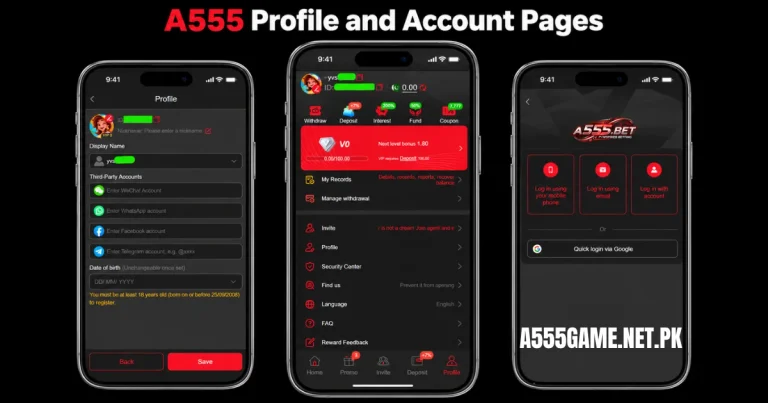
Profile and Account Pages
The Profile button is at the bottom right of the mobile screen. After signing in, open it to see the account information shown there. If you are asked to log in first, use the login option in the app and then return to Profile.
Check that the details on the page belong to you. If something needs changing, look for the relevant option inside your account and follow the instructions there. If a message sends you to an unfamiliar form, do not enter your personal details. Open the app yourself and find the account page from there.
If a Game Tile Will Not Open
If pictures or names are still missing from the Home page, give it a moment to load. Check your connection before trying again. If the rest of the page looks normal but one tile does not respond, go back to its category and try opening it once more.
When a sign-in message appears, read it and follow the steps shown on screen. If the tile still will not open, note the game’s name, its category, and any message you see. You can give those details to Help Center or Online Support so they know which game you mean.
What the Screenshots Can Tell You
The screenshots show where to find the game categories, navigation buttons, Promo tabs, Invite page, support options, and 18+ notice on a mobile screen. They help you get familiar with the layout before you start looking through the pages yourself.
A screenshot only shows how a page looked when it was taken. It cannot tell you whether a notice is still active, which devices the current version supports, or when support will reply. Check the page itself when you need an up-to-date answer. The menu also shows an 18+ notice, so read that and the platform’s current rules.
Pros and Limitations
| What helps when browsing | What to keep in mind |
|---|---|
| Games are grouped under category names. | A category name does not tell you how each game works. |
| Home and Promo are in the bottom menu. | You may need to scroll to see all the Home page sections. |
| All and Expand show more titles in a category. | The titles shown may change over time. |
| Help Center and Online Support are listed in the menu. | The screenshots do not show how long a reply takes. |
| The download prompt shows different choices. | Check the current access page to see which options and device requirements apply to you. |
My Final Verdict – Should You Try A555?
The A555 homepage is long and requires some scrolling, but the categories make it easy to navigate. If you are a new visitor, avoid opening every tile at once. Explore one category at a time. Before downloading or registering, read the current page text carefully. Screenshots may be outdated. Also, note that you must be 18 years or older, as this is clearly stated in the menu. Do not install the app from random WhatsApp links. Use the verified publisher’s website.